Answers the caller
Uses your approved greeting and business details so callers are acknowledged instead of reaching voicemail.
SETUP GUIDE
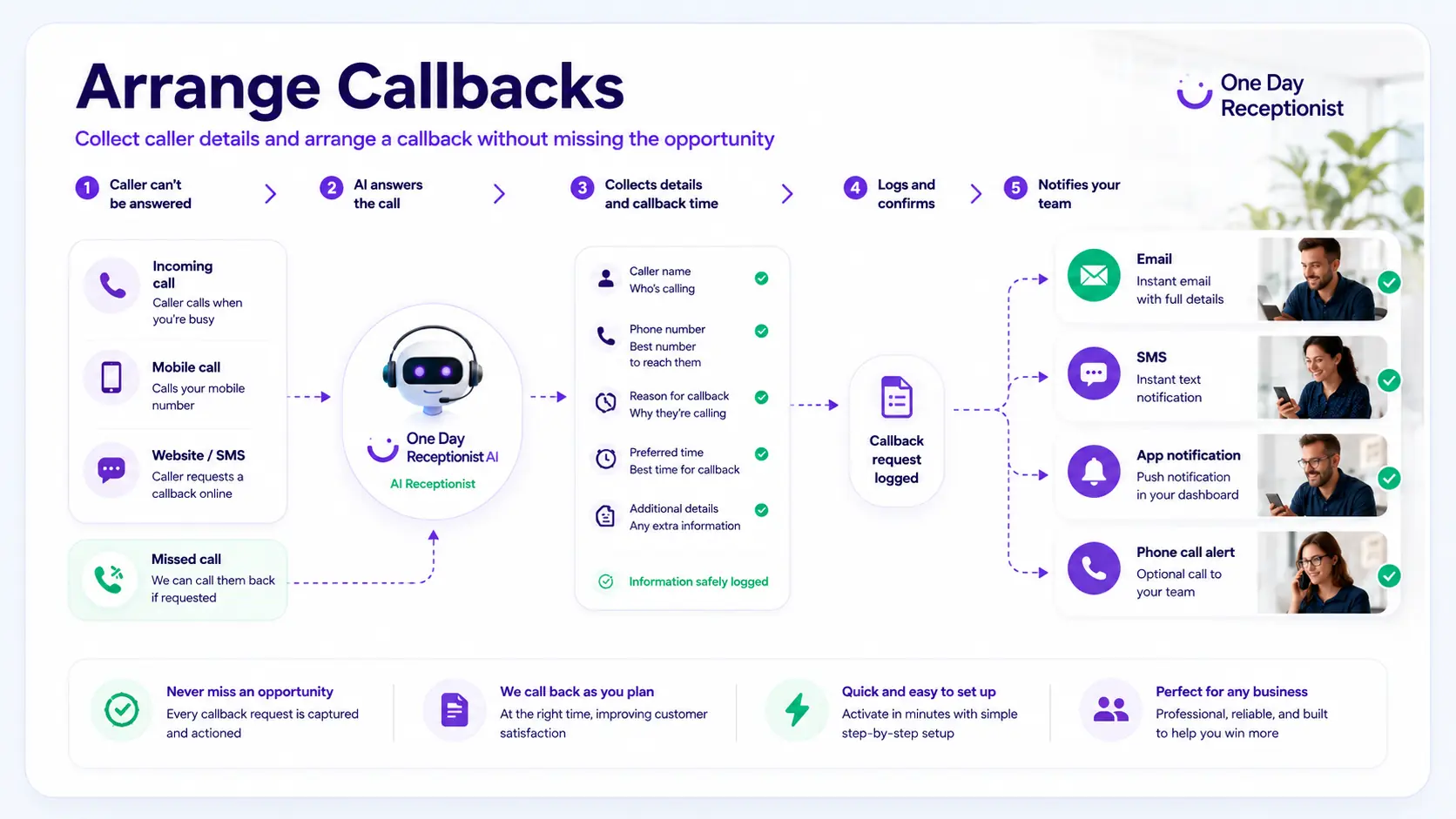
Set up the receptionist to collect caller details and arrange a callback without losing the enquiry.
WHAT IT DOES
Arrange Callbacks gives callers a professional answer, gathers the reason for the call, checks when they would prefer a response and sends your team the details for follow-up.
Uses your approved greeting and business details so callers are acknowledged instead of reaching voicemail.
Captures who called, why they need a callback, how urgent it is and when they would prefer to be contacted.
Passes the callback request to your chosen contacts so your team can return the call with context.
Start from the setup screen so the receptionist can be configured for the right business and call cover type.
What to check: You are signed in and ready to start or continue the setup for the correct account.
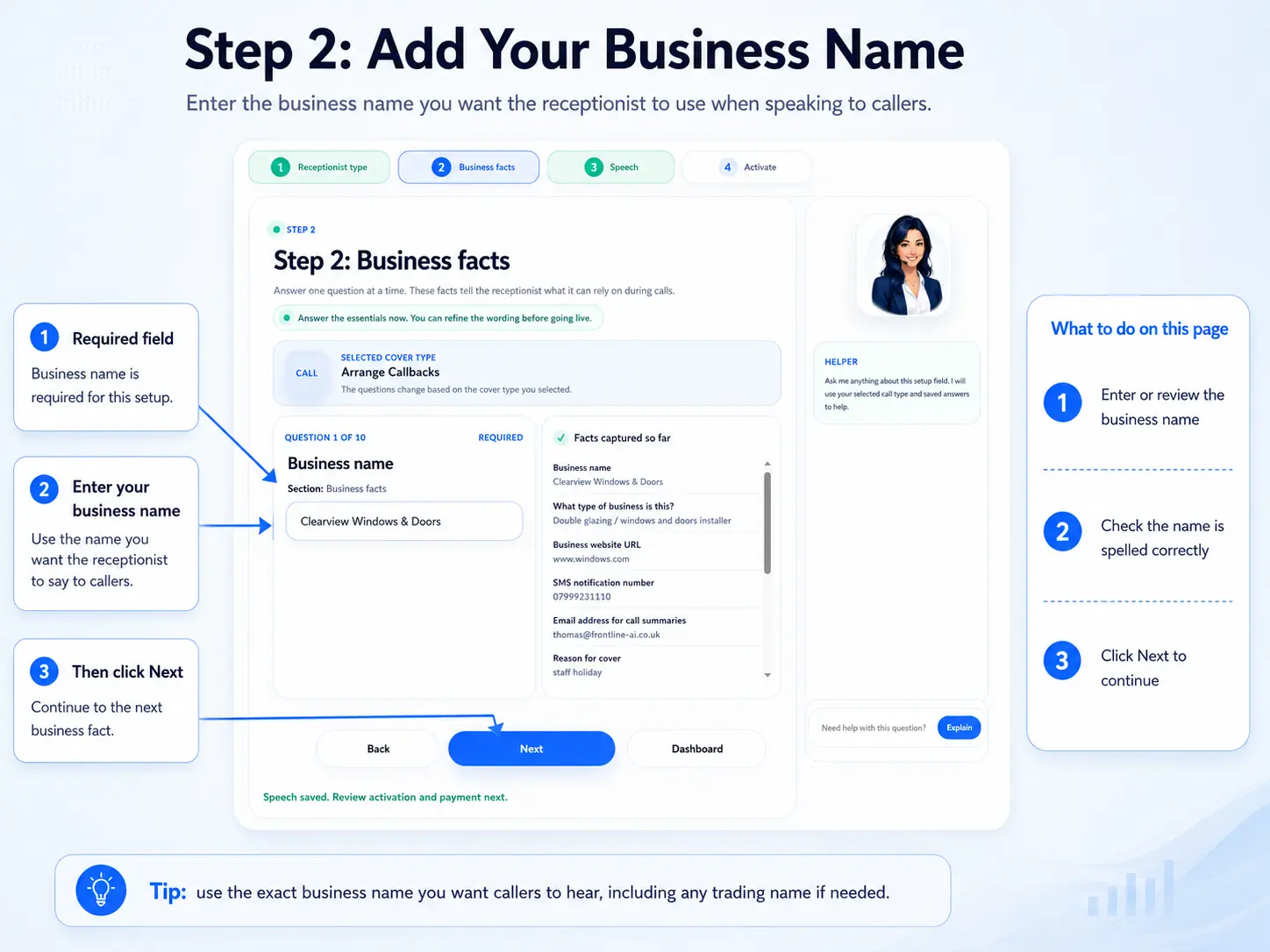
Confirm the business the receptionist will represent before adding callback instructions.
What to check: The business name and account context match the caller experience you want to test.
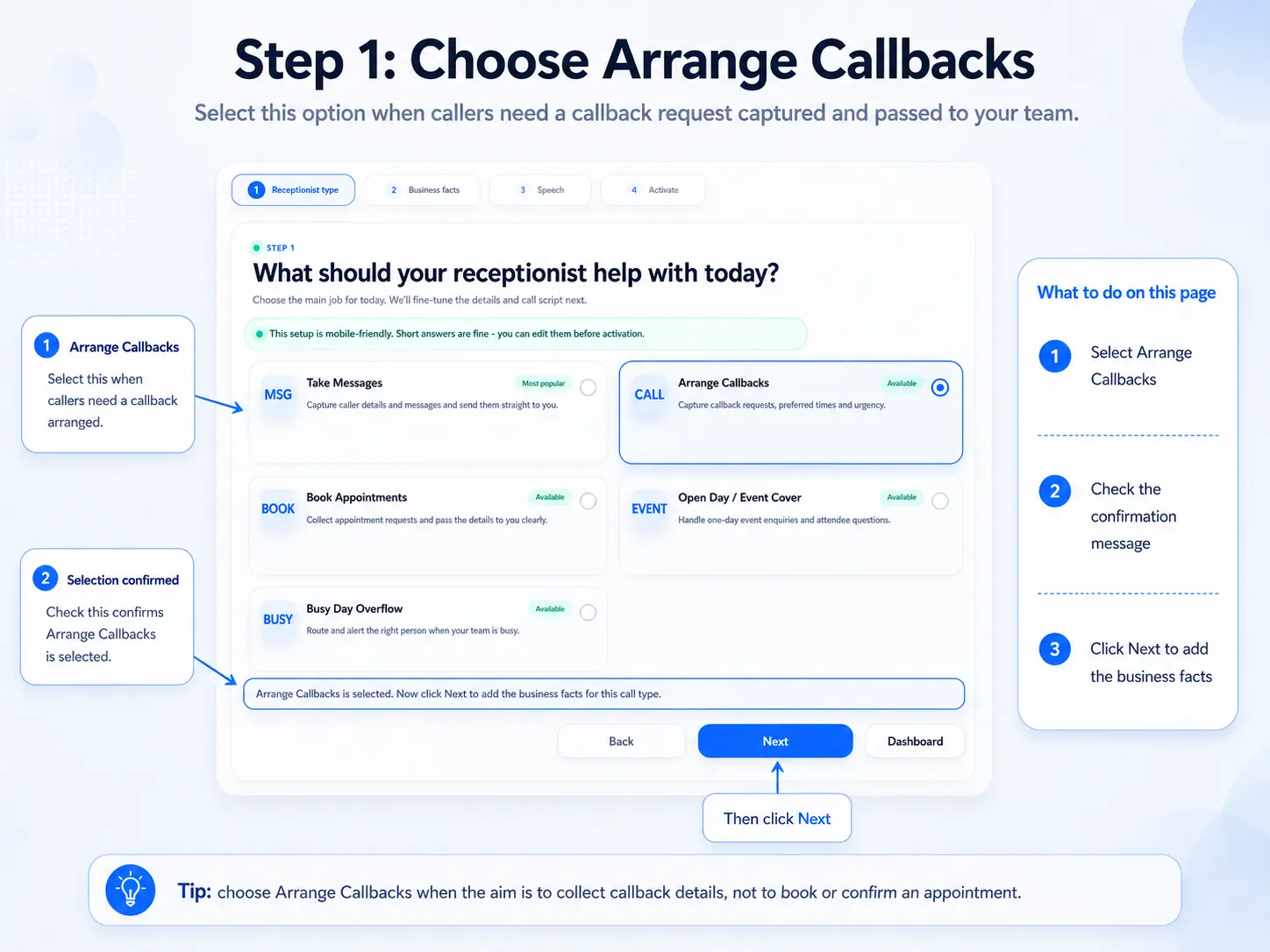
Select Arrange Callbacks so the setup flow captures callback requests, preferred times and urgency details.
What to check: Arrange Callbacks is the selected receptionist type before you move on.
Read the flow summary so you understand how the receptionist will take the request and pass it to your team.
What to check: The flow matches your intended handover process for missed or delayed calls.
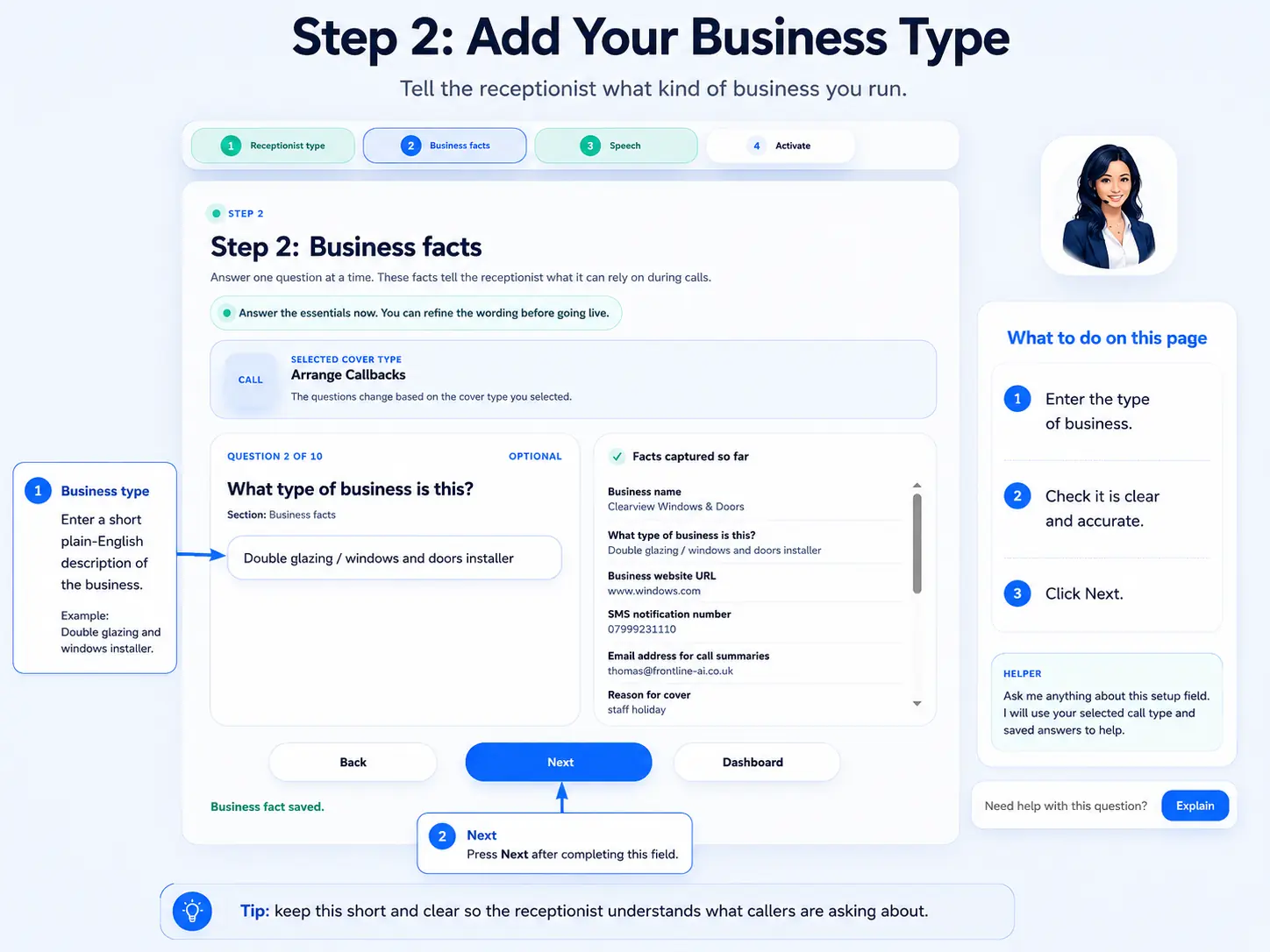
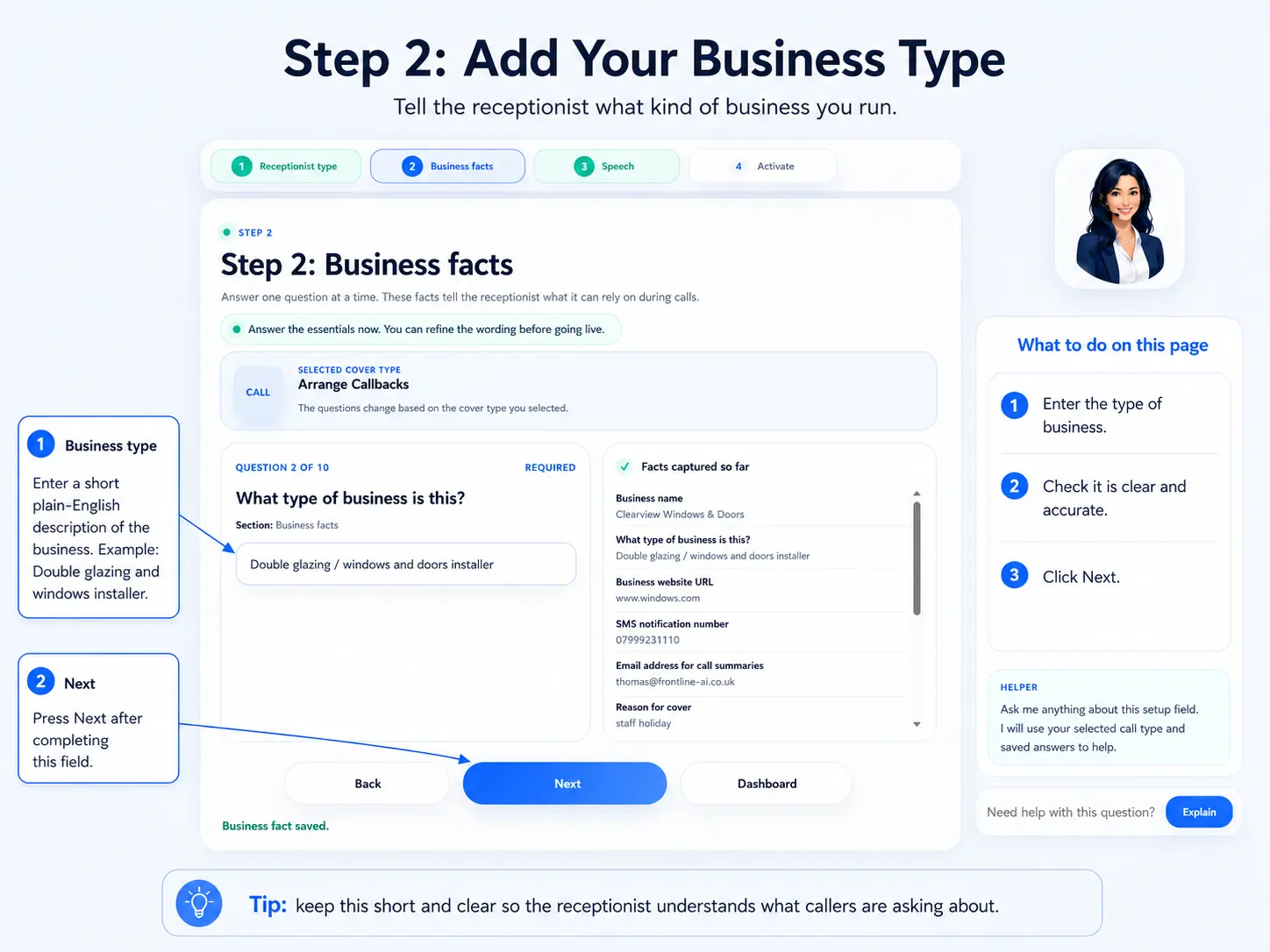
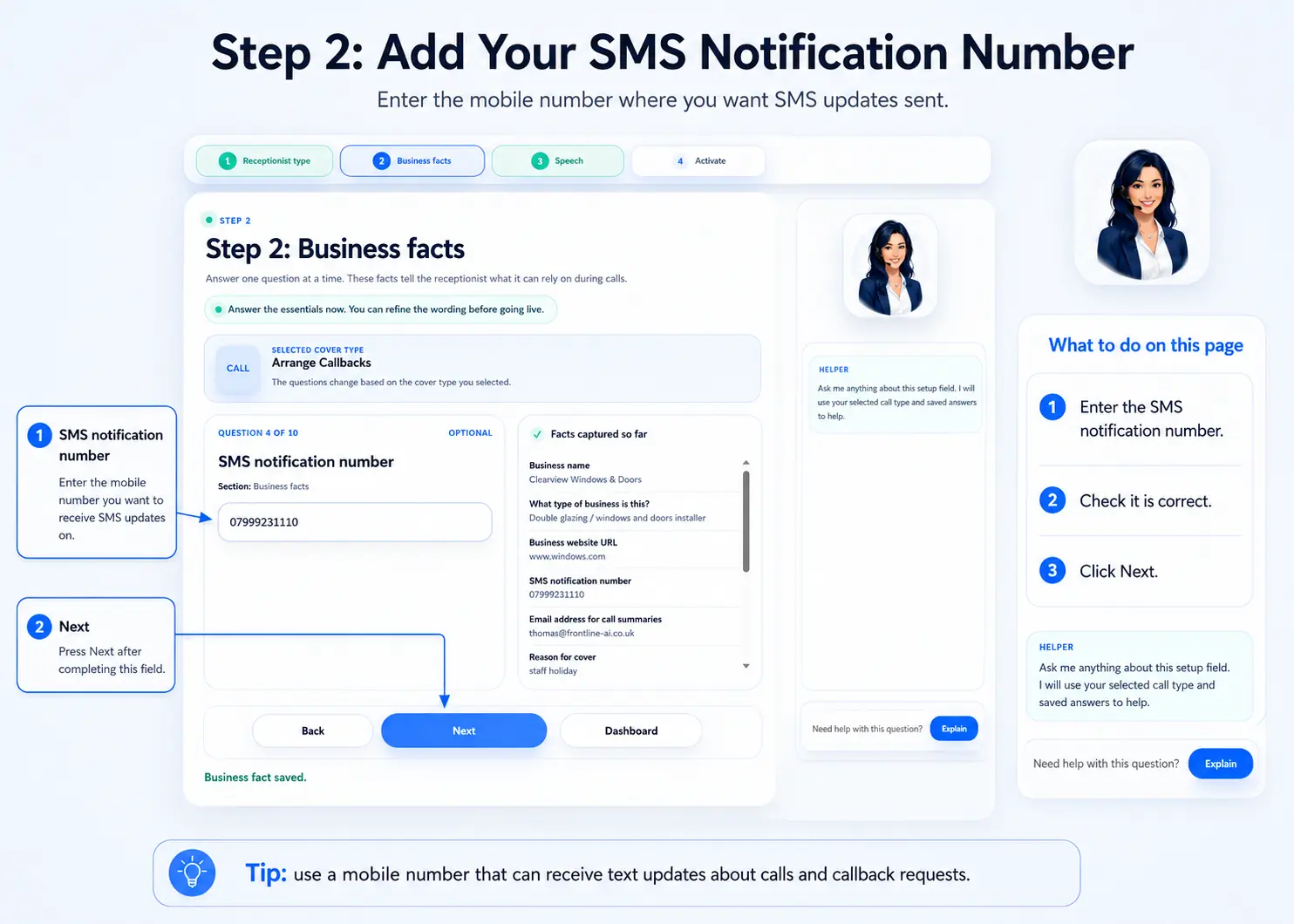
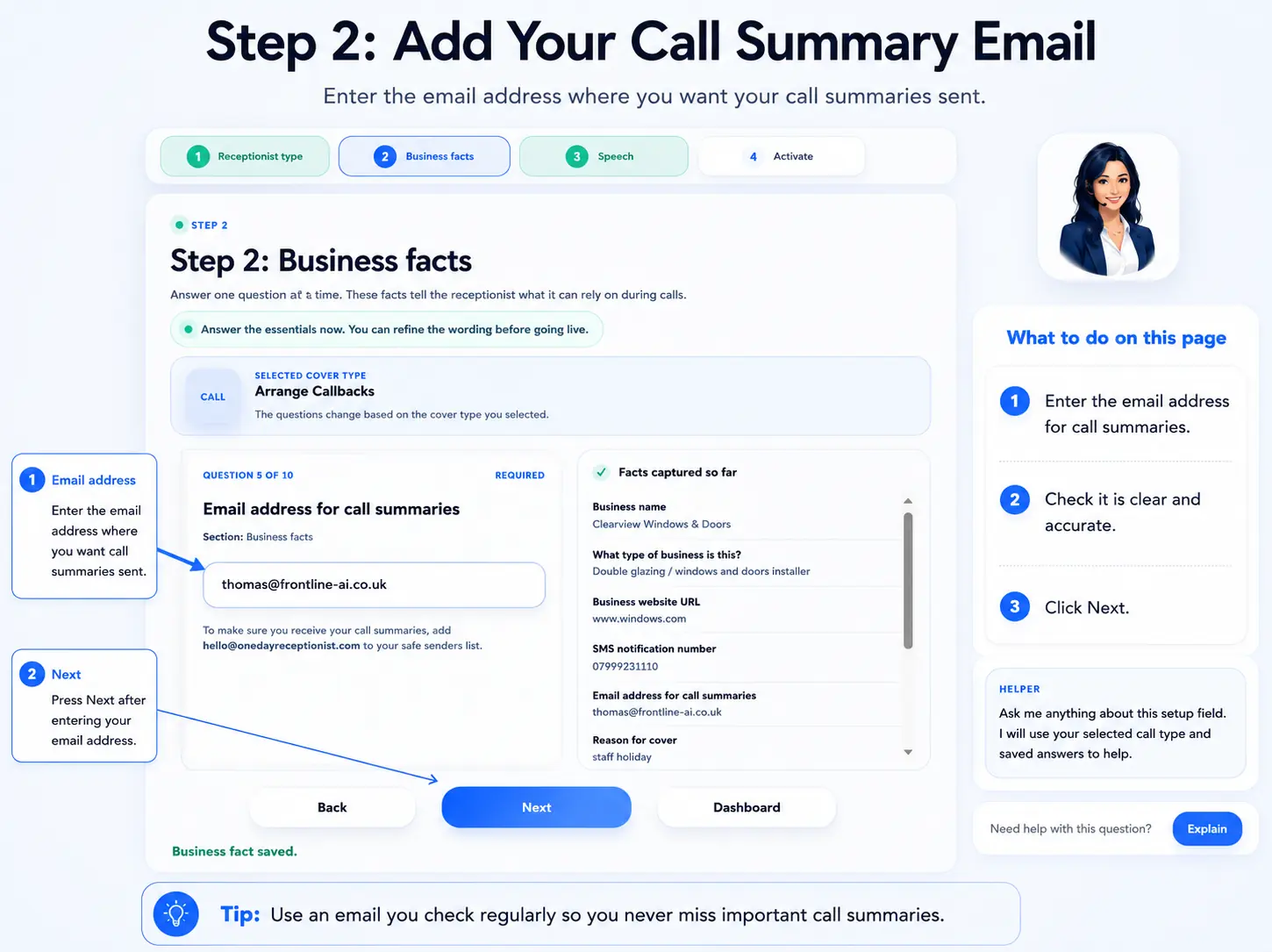
Add the details the receptionist must capture before a callback request is considered useful.
What to check: Name, phone number, callback reason and any business-specific details are included.
Check the opening wording callers hear so it sounds natural and sets the right expectation.
What to check: The greeting names the business correctly and does not promise a guaranteed callback time.
Review the questions used to collect the caller's name, contact number and reason for the callback.
What to check: The questions are clear, short and collect enough information for follow-up.
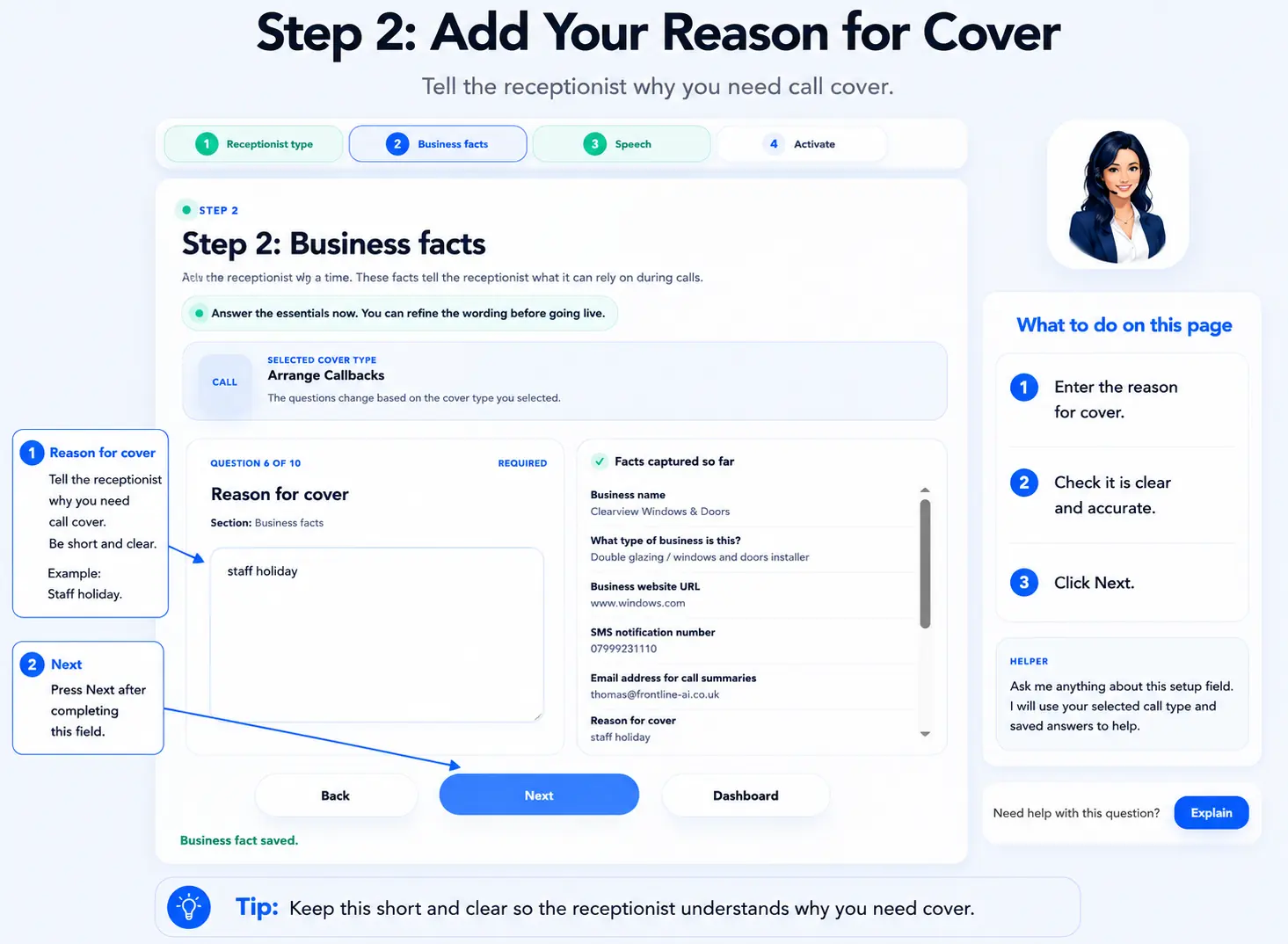
Make sure the receptionist asks when the caller would prefer to be contacted without making a firm promise.
What to check: The wording captures a preference, not a guaranteed appointment or callback slot.
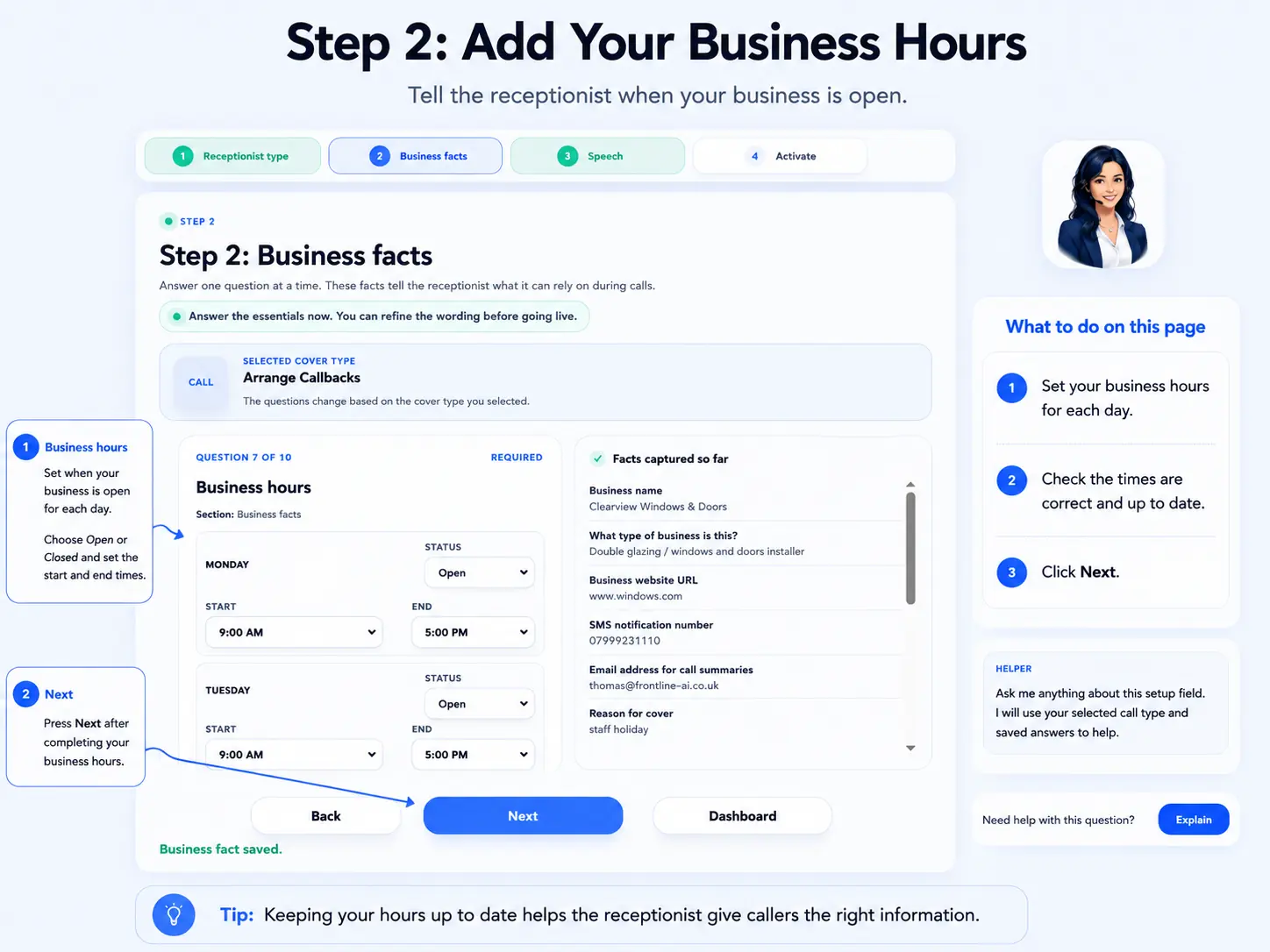
Review what the receptionist says when it cannot answer a question or needs to take the enquiry for follow-up.
What to check: The fallback is calm, accurate and routes the caller back to a callback request.
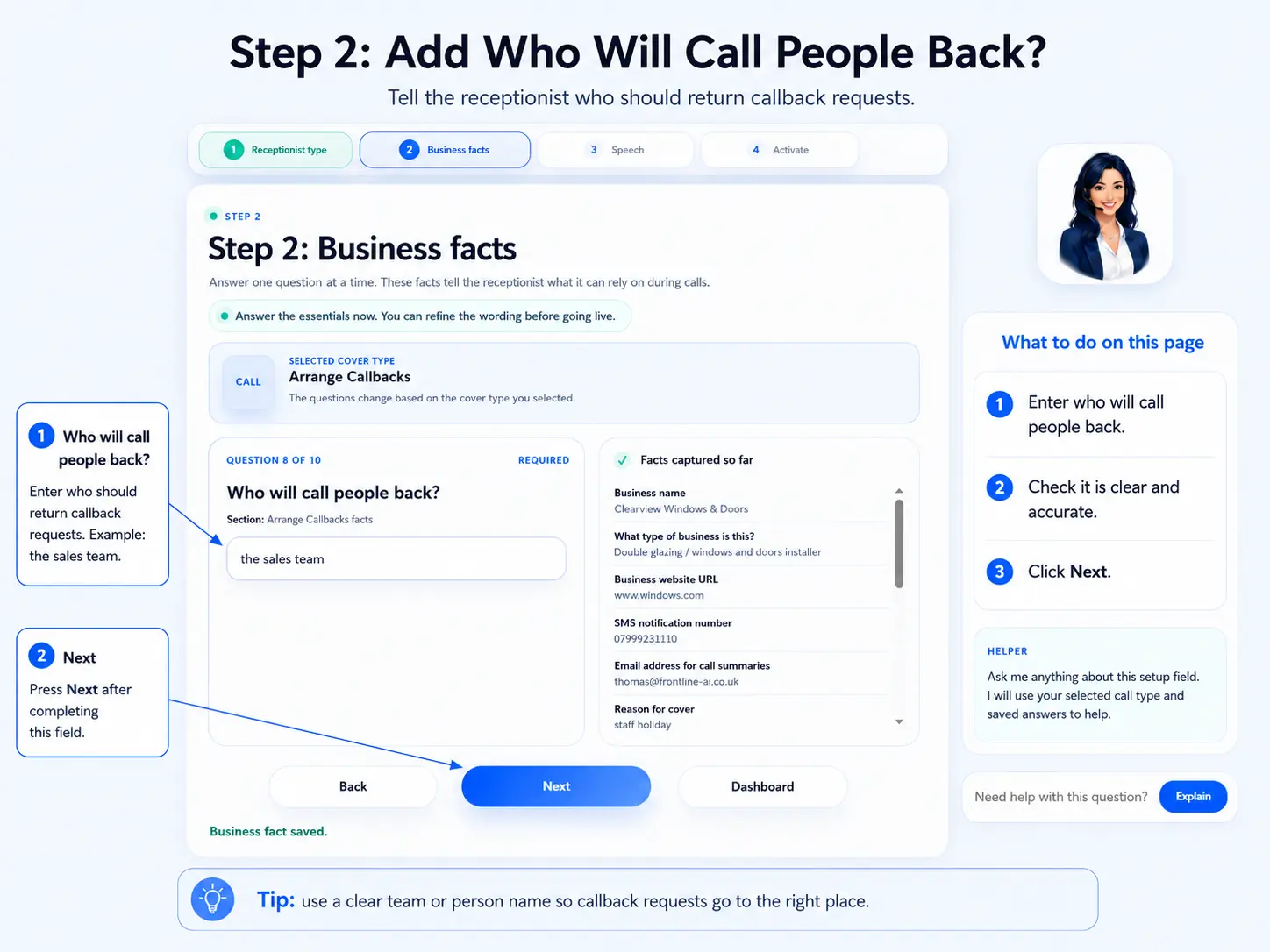
Use the preview to read through how the receptionist will greet the caller and ask for callback details.
What to check: The preview sounds professional and follows the expected callback path.
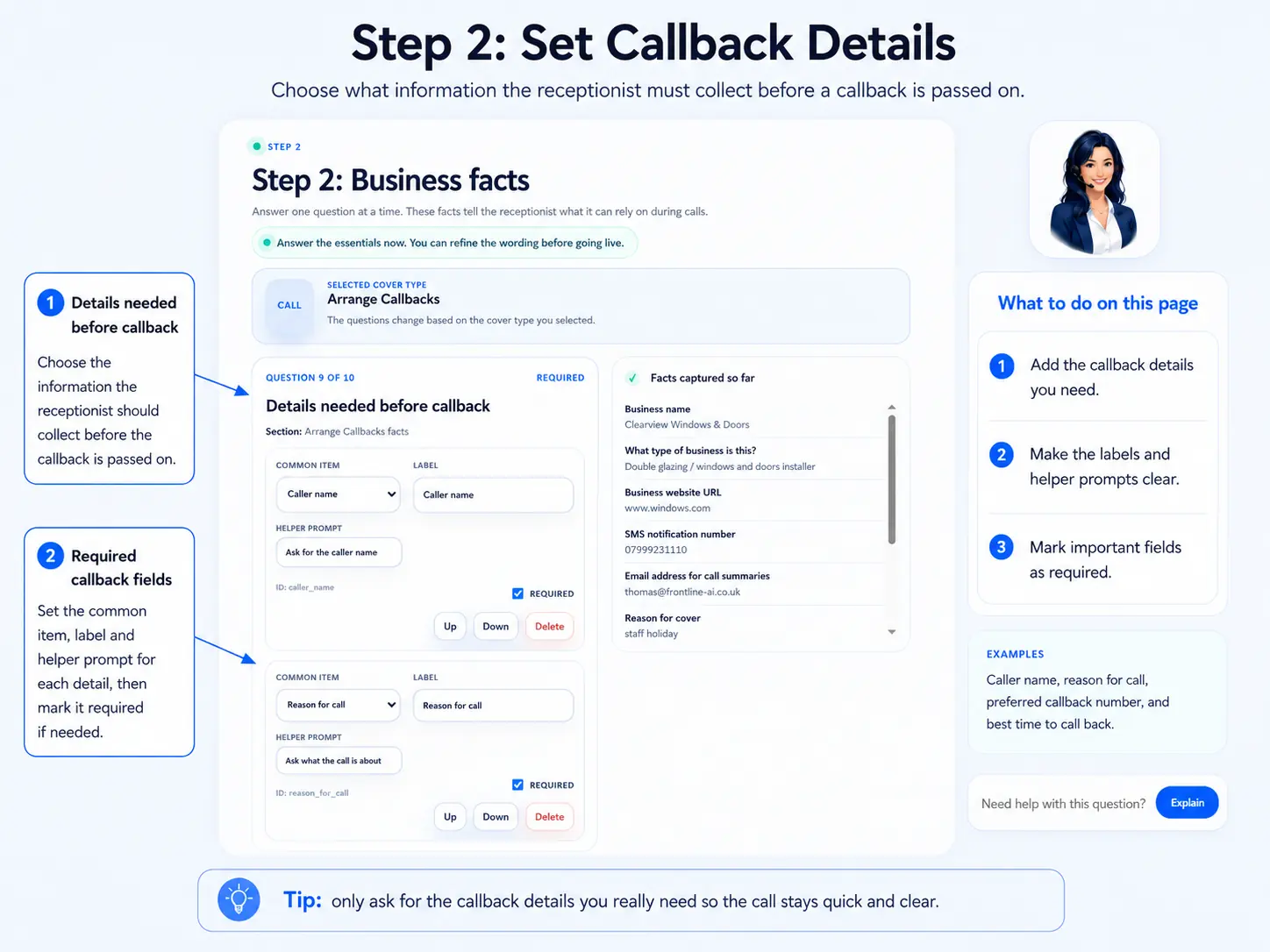
Save the receptionist configuration so the callback flow and handover settings are retained.
What to check: The page confirms the setup is saved before you leave or activate.
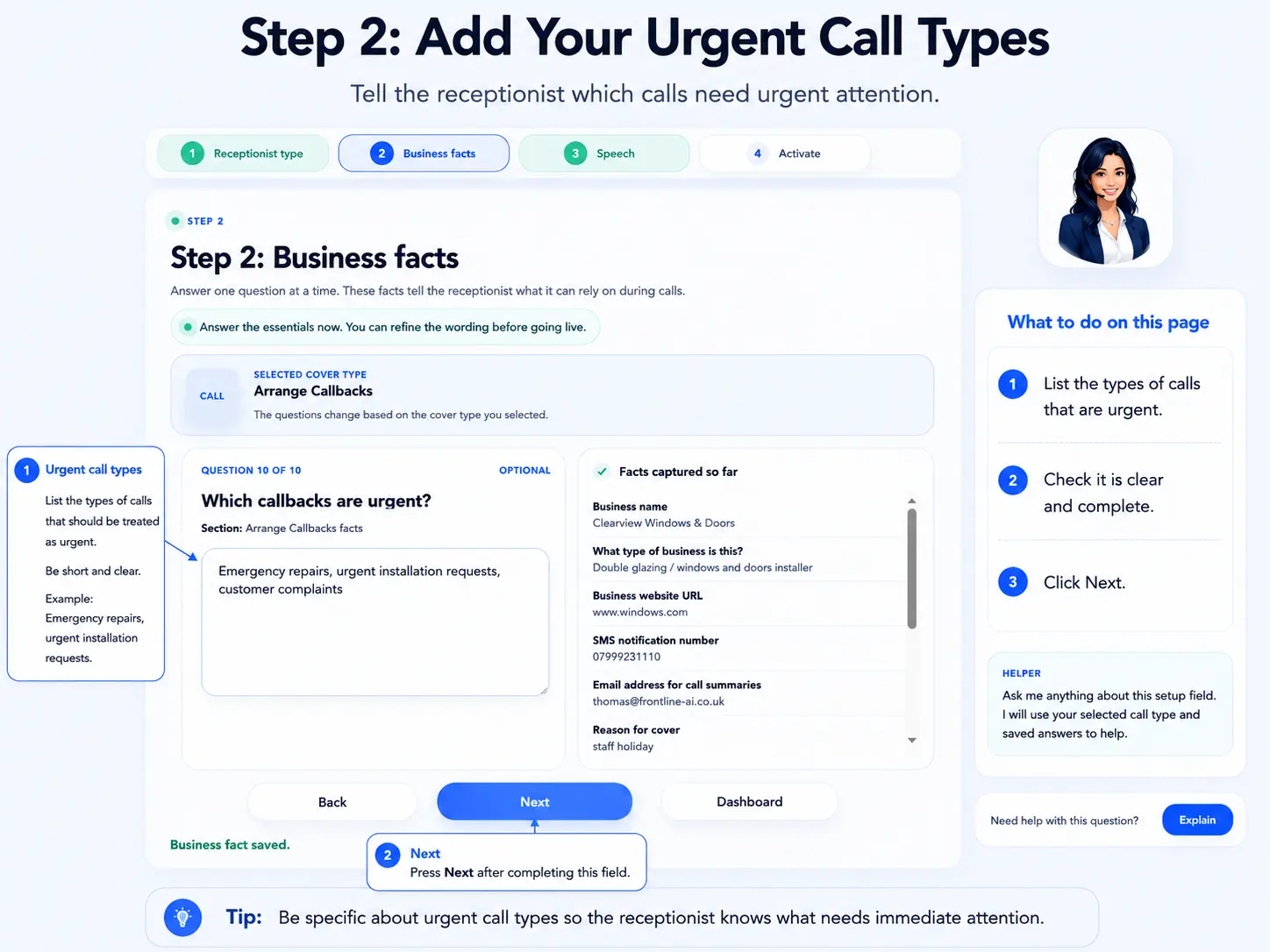
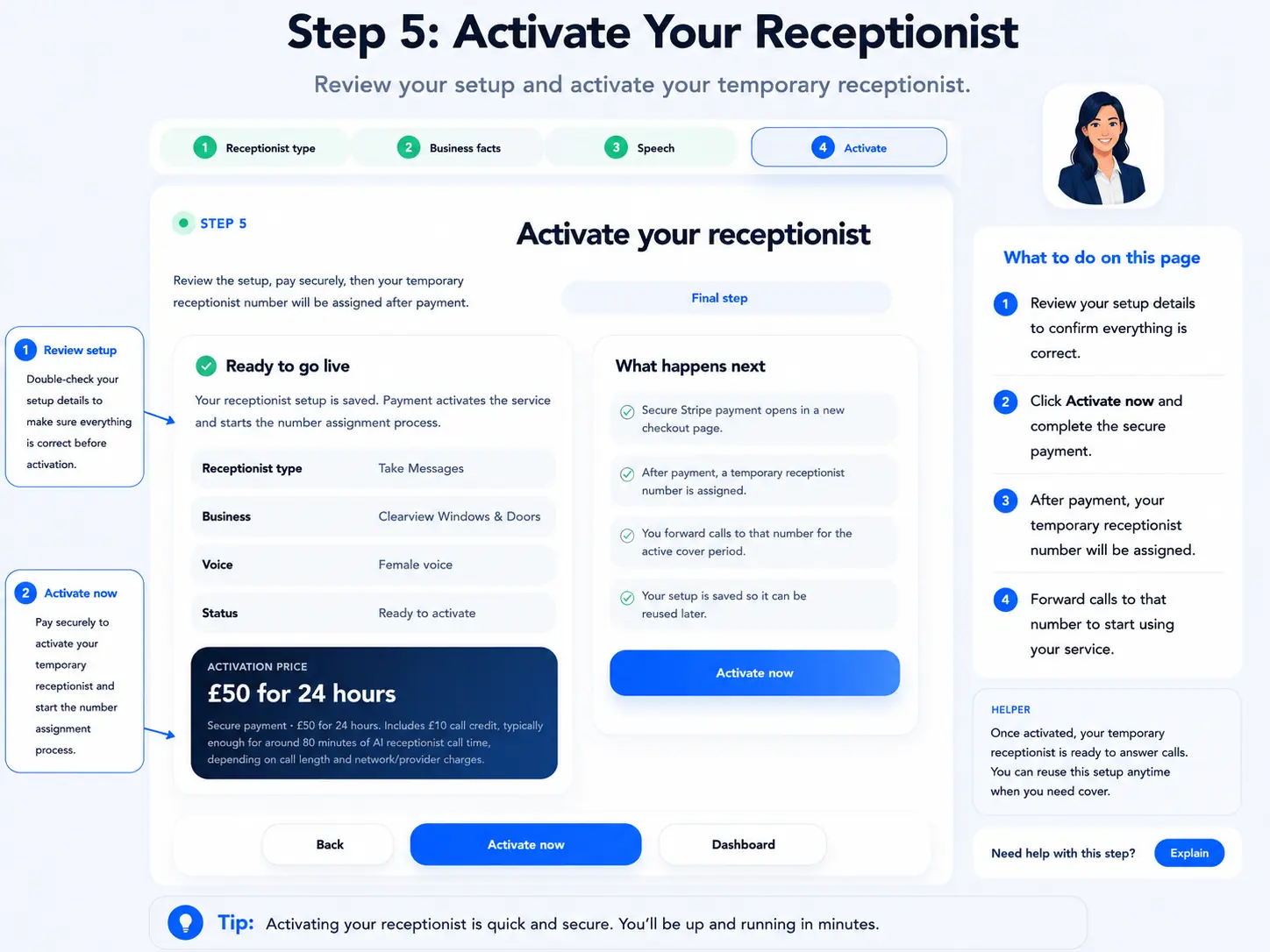
Review the activation details and make sure the temporary receptionist number will be used at the right time.
What to check: Pricing, cover length, forwarding instructions and contact details are correct.
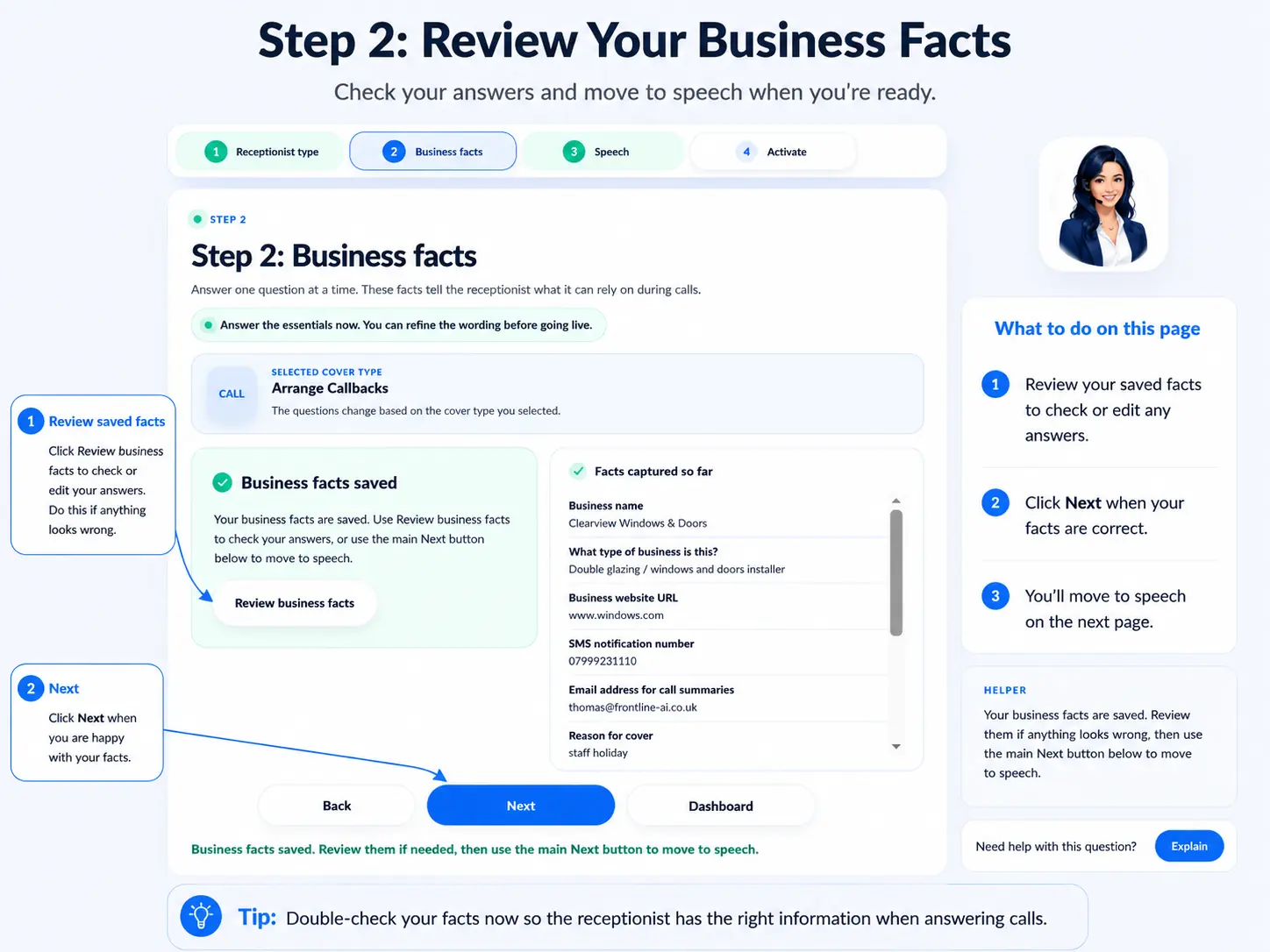
Run through a test call or review a previous test to confirm the receptionist captures the callback request cleanly.
What to check: The call reaches the receptionist and asks for the key callback details.
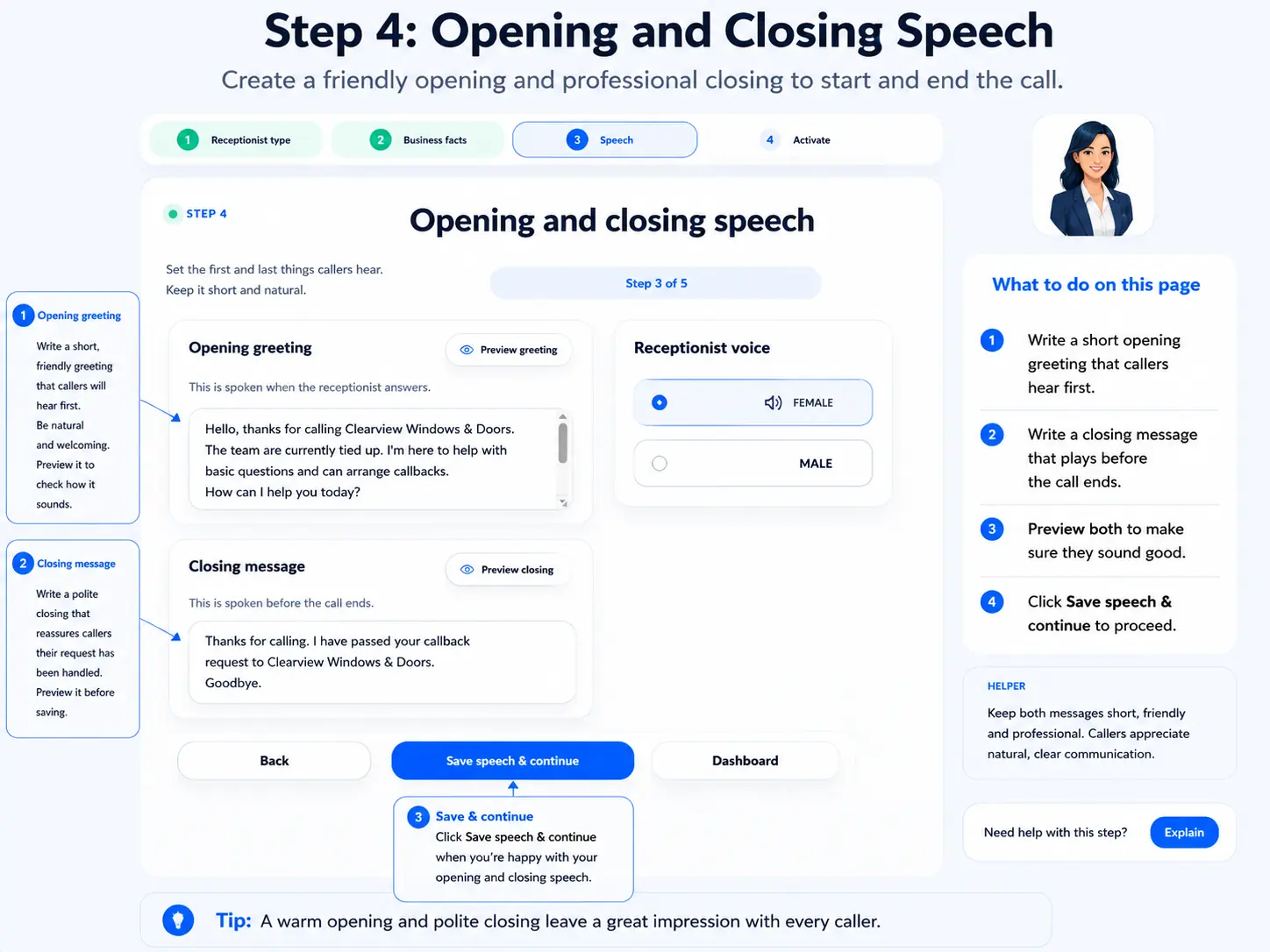
Check the final handover so your team has the caller details, reason for contact and preferred callback time.
What to check: The callback summary is complete enough for the team to return the call without guessing.